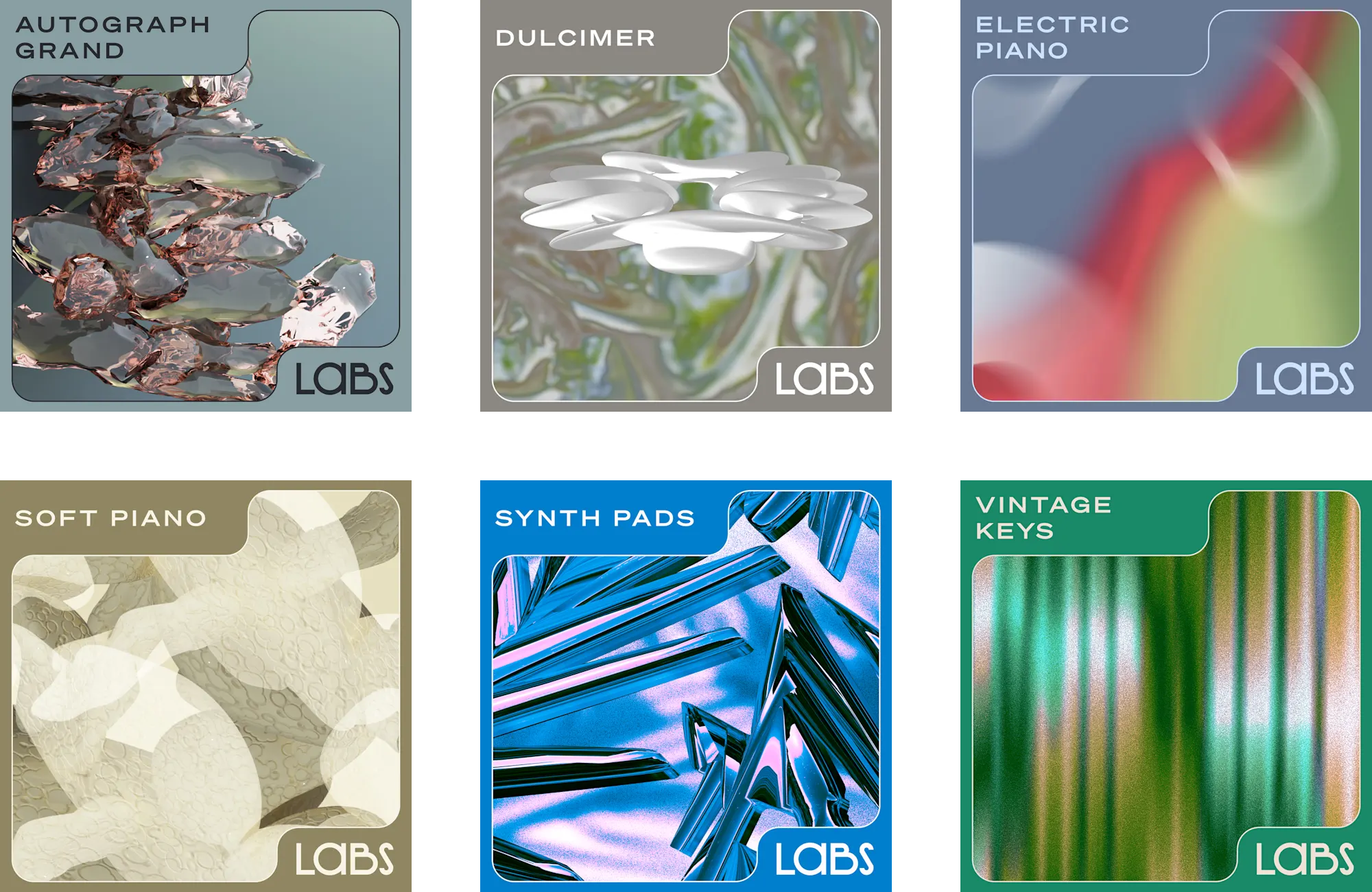
How To Install Splice INSTRUMENT and Splice Sample Libraries
Splice INSTRUMENT is a free app that lets you use both free and paid sample libraries from Splice. You'll need a computer to install and use the app.
-
Create a user account: https://splice.com/accounts/sign-up
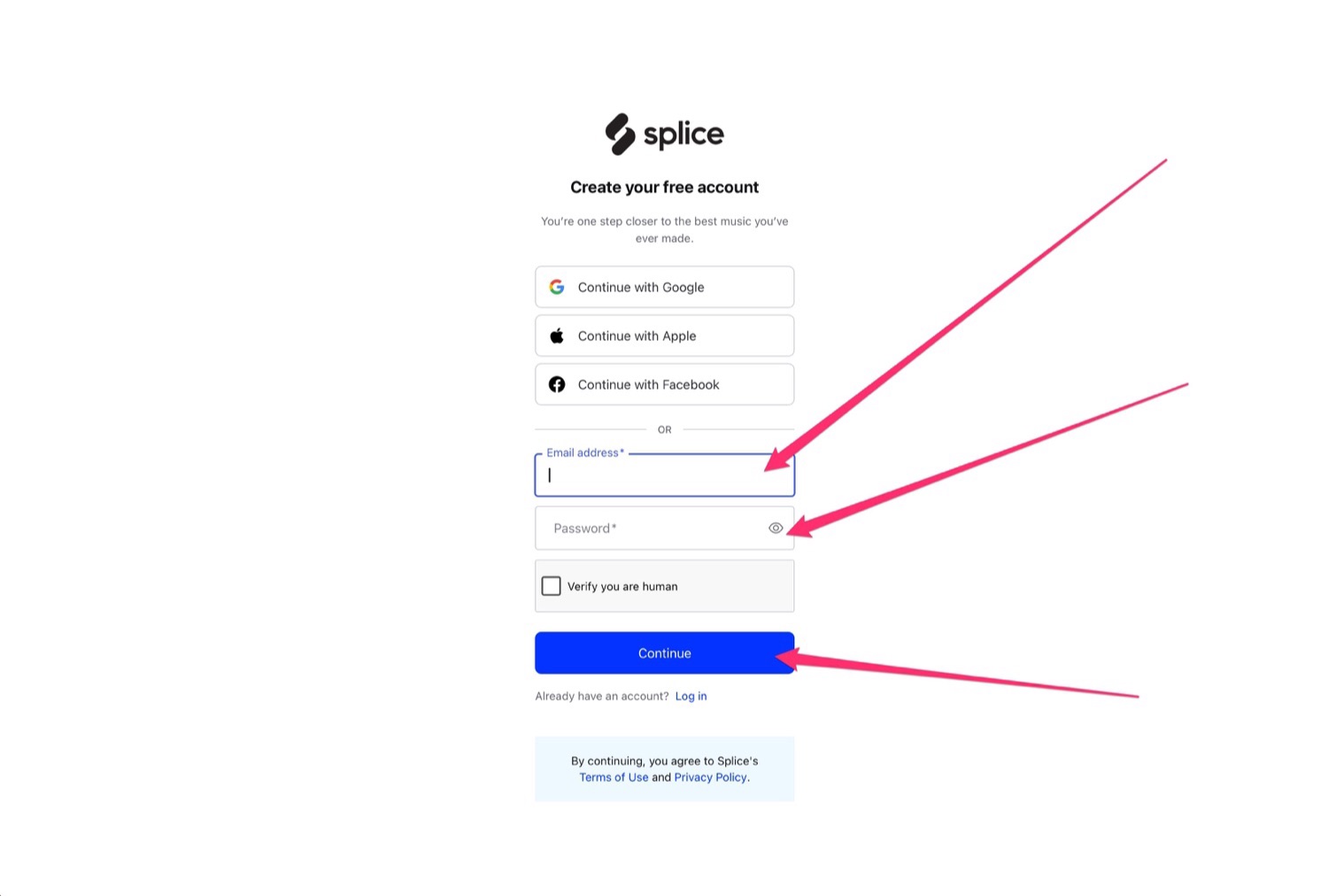
-
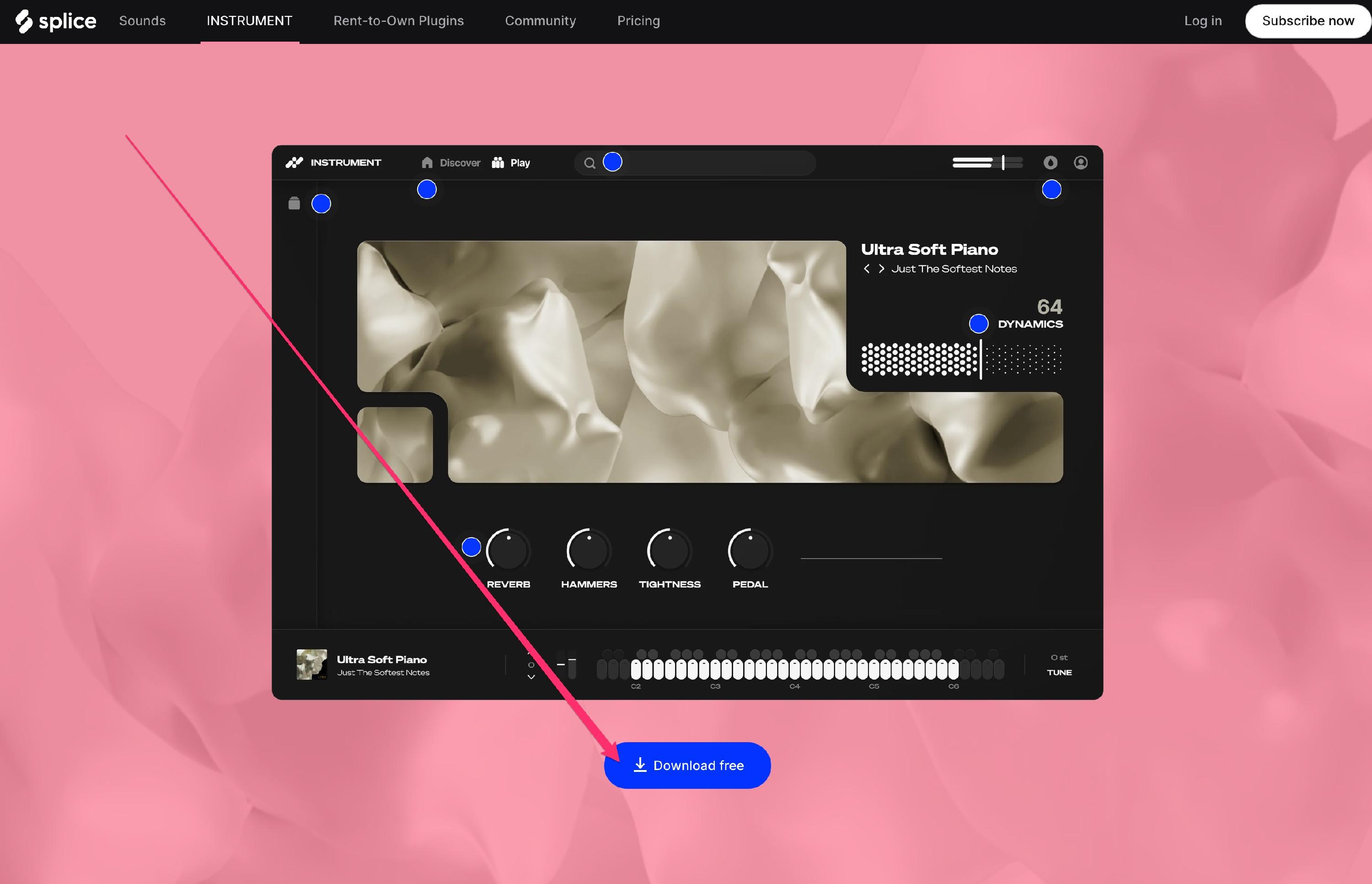
Download the Splice INSTRUMENT plugin and install it from: https://splice.com/instrument. Scroll down the page a bit until you see the "Download Free" button.
-
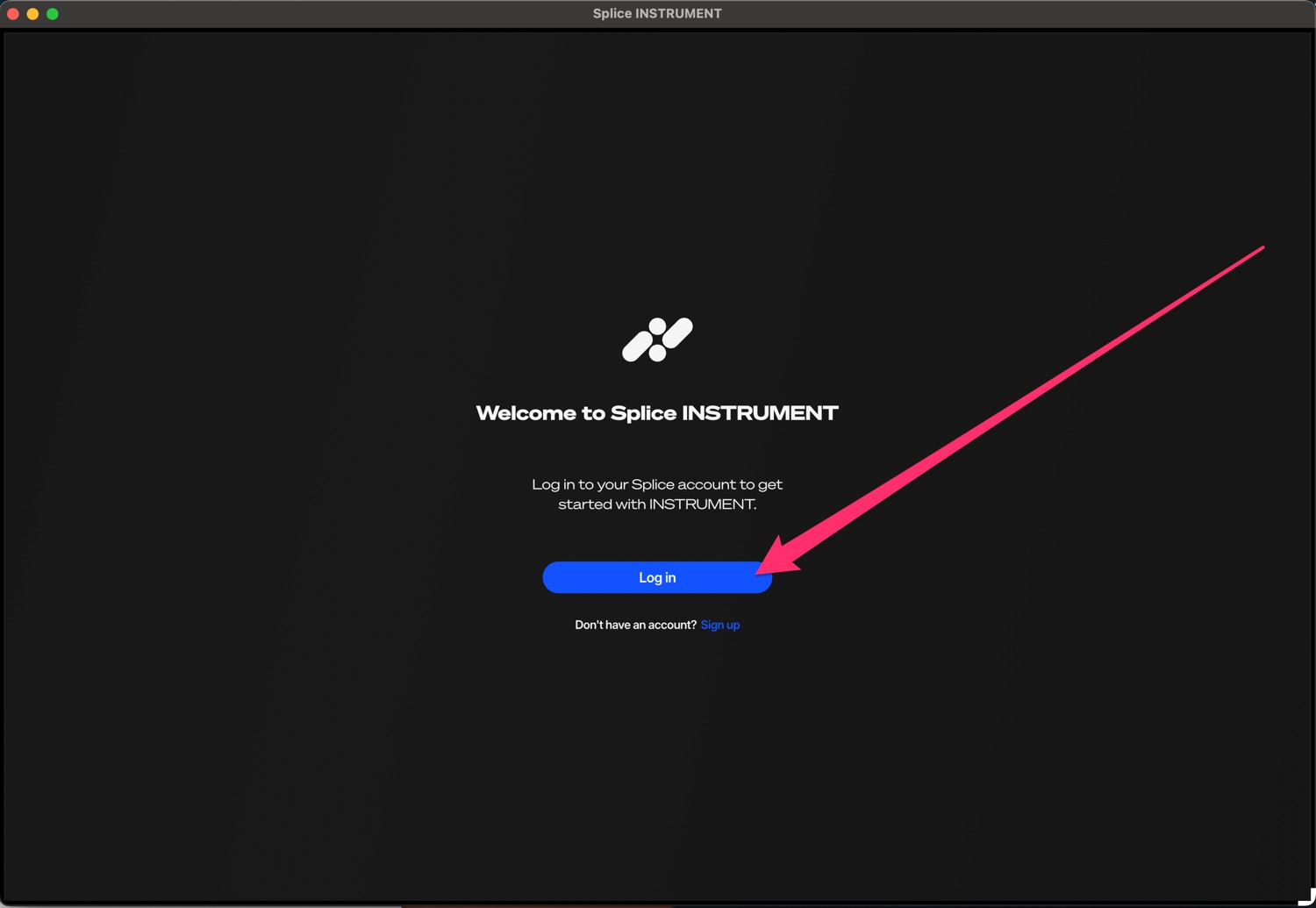
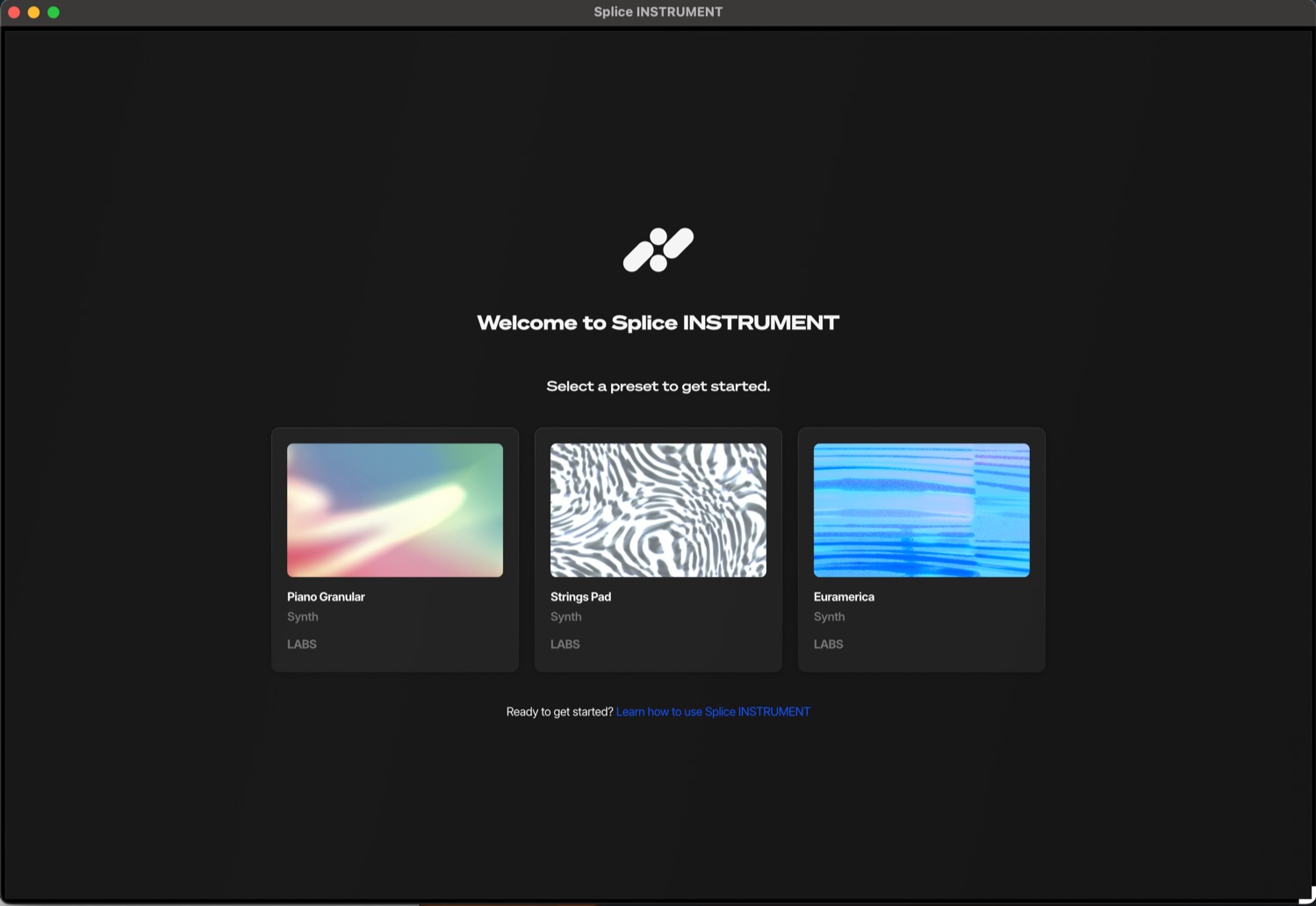
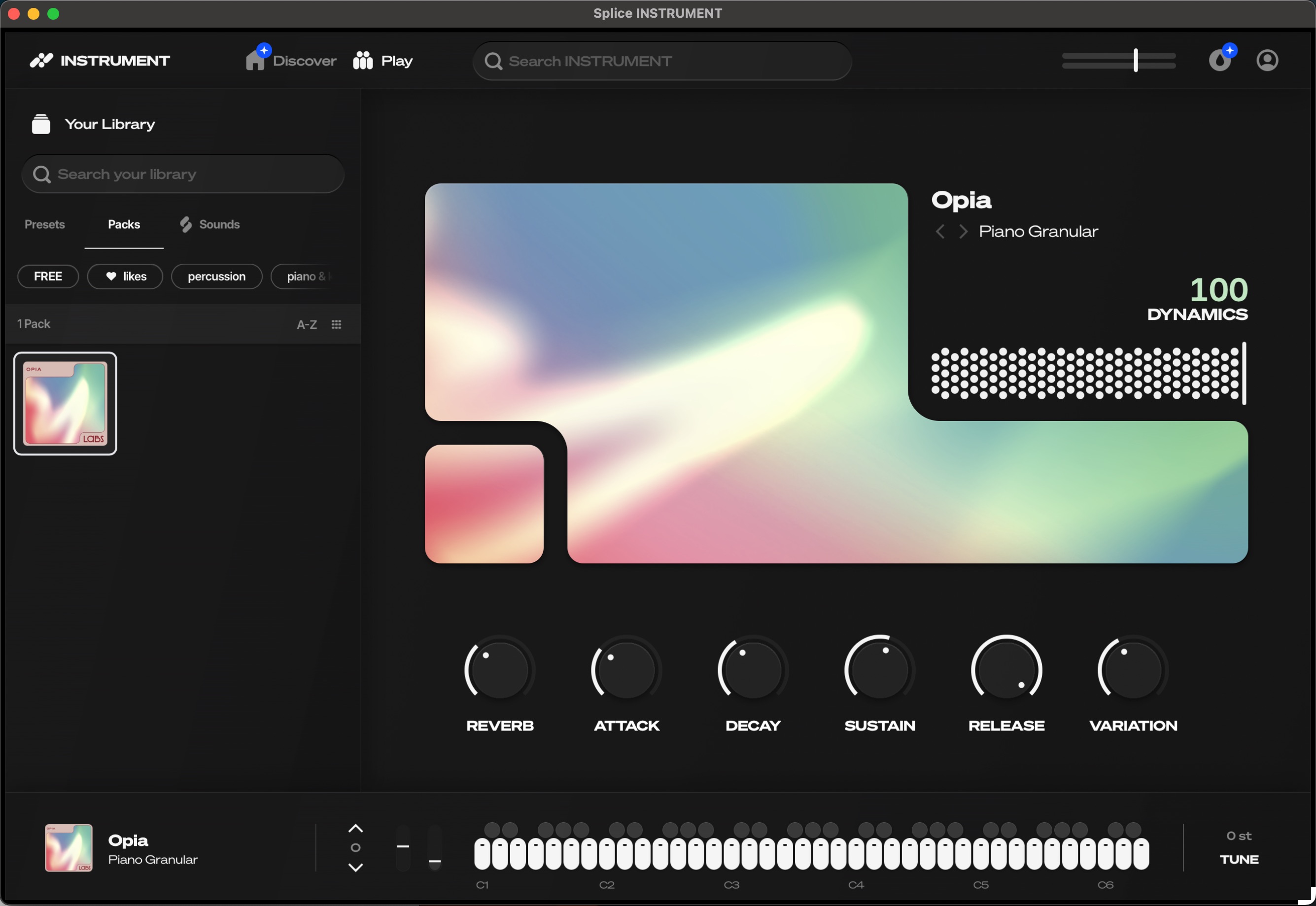
Open the app - it will be located in your Mac Applications folder. Log in with the account you just created, and then choose any starting preset.
-
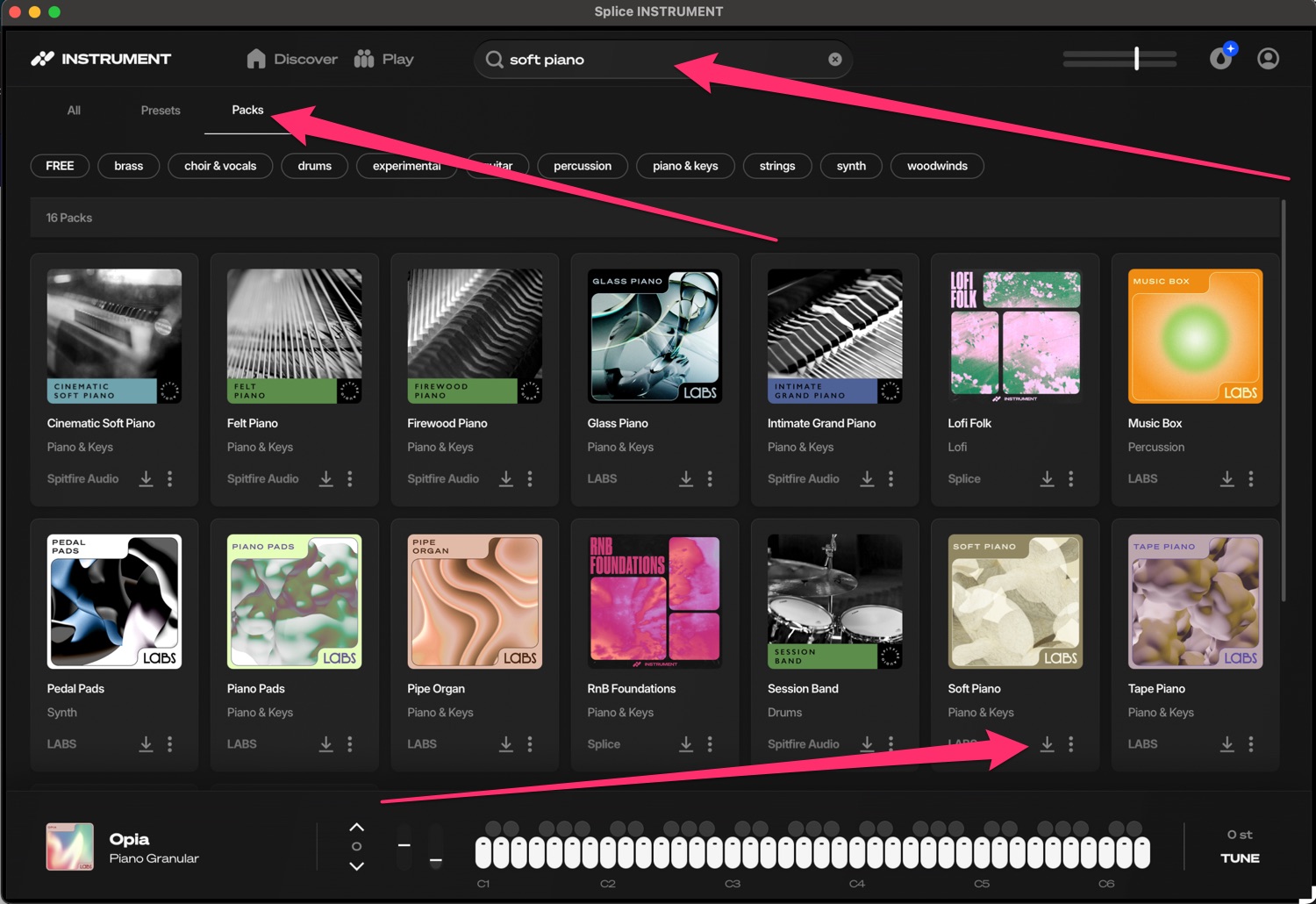
Go to the "Search INSTRUMENT" bar, and type in the sample library you need. For example, Worship Essentials requires a few different libraries, such as "Soft Piano". Then, click on the "Packs" filter to just see sample library results. Find the pack you are looking for, and then click the Download icon.
-
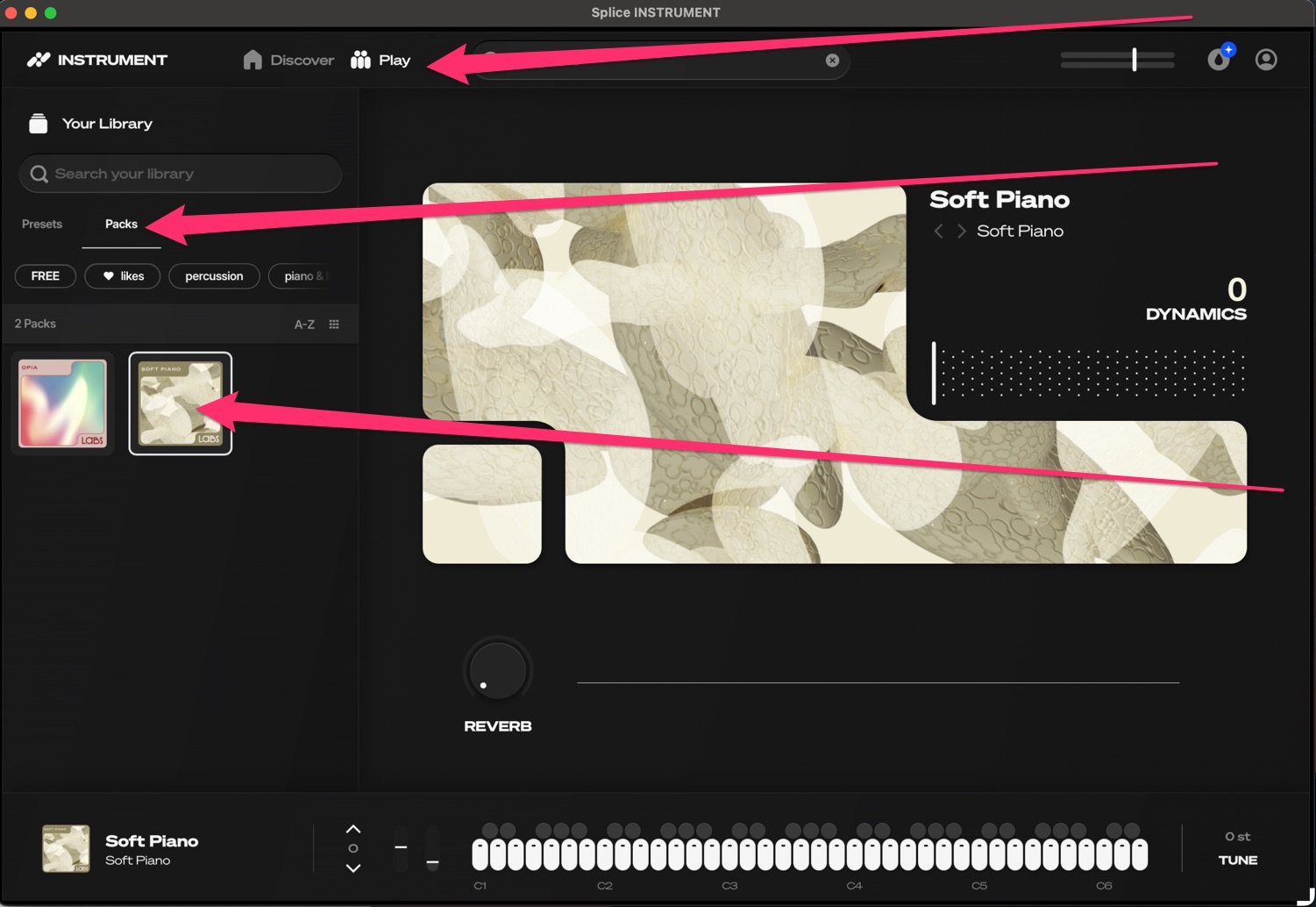
Once installed, you can see all installed sample library packs by clicking on the "Play" tab, then "Packs". Make sure any required Packs show as installed here so MainStage can access them!
List of packs required by Worship Essentials: